To publish any app to our Marketplace, you can submit the app under one of the following app types. App types determine how an app is available for consumption to app users - publicly displayed, private only to a Freshworks customer, listed in an external website, and so on.
The app submission process has been upgraded and now features Freddy AI and a new Apps Categorization framework, aiming to improve the app discoverability and build trust in the marketplace. By offering clearer app names and detailed descriptions alongside meaningful categories and subcategories, the user experience is significantly enhanced, making it easier for customers to find the apps they need, facilitating quicker adoption and faster value realization.
Important: Developers of existing apps are encouraged to use the Freddy AI-assisted submission process to update their apps with new categories and content. This can be done until December 2024. After that, the Freshworks Marketplace will begin automatically migrating all apps to the new categories.
Freshworks app
These apps extend the functionalities of a Freshworks product and are built using the Freshworks CLI. A Freshworks paid app enables you to generate revenue whenever a customer installs your app from the Freshworks Marketplace. For more information, refer to the Charges, Collection, Revenue Share, and Payment sections in Terms of Use. A Freshworks app is installed from the Freshworks Marketplace. For information on how to submit a Freshworks app, see Freshworks Apps.
Custom app
These apps address specific customer requirements and are available only to that customer. A custom app is not subject to review; it is available for installation as soon as it is submitted and published. The app submission process for Custom apps includes provisions to test multiple versions of an app in a production environment. After testing, you can choose to publish the most appropriate app version to app users. For information on how to test the app versions and submit a Custom app, see Custom Apps.
External app
These apps use module specific methods and integrate the functionalities of the parent application (the product on which the app is deployed after installation) with a third-party product. An External App is listed in the Freshworks Marketplace but is installed from the third-party’s URL. For information on how to submit an External app, see External Apps.
Freshworks Developer portal
The Freshworks Developer Portal is a centralized platform for submitting and maintaining apps. To access the portal, sign up or log in to your Freshworks Developer account. After logging in to your Developer account, you are redirected to a page that displays the following tabs to manage your apps:
- Public App: Displays a list of Freshworks or external applications submitted to the Freshworks Marketplace.
- Custom App: Displays a list of custom applications available for each account within your organization. Use the account dropdown to switch between different organizational accounts.
- Activity Feed: Provides an audit log of application submissions and updates performed by users.
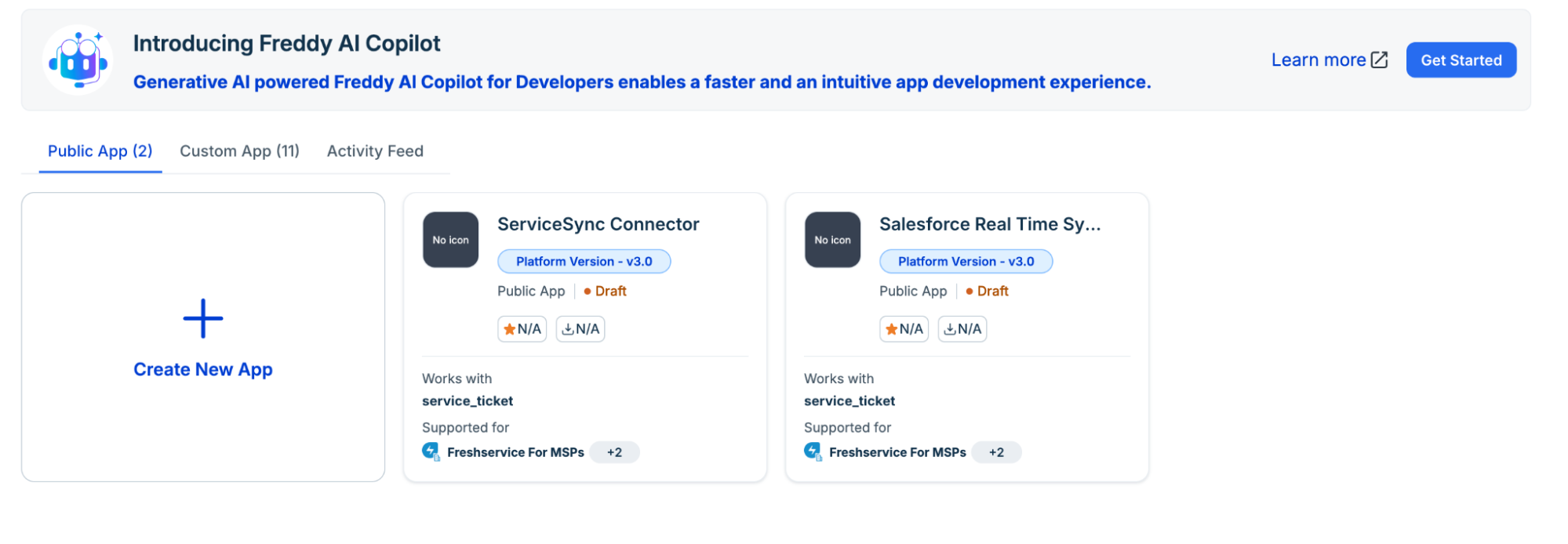 The apps pageNotes:
- To submit a Freshworks or External app, you only need a Freshworks Developer account. An active product subscription is not required.
- Since Custom apps are linked to specific accounts, you need to have an active subscription to a Freshworks product (such as Freshdesk or Freshservice) in addition to your developer account to submit them.
For the service_user module, the supported product(s) and the path to the corresponding apps gallery are as follows. Important:Ensure to upload and submit the packed file of a Custom app from the Freshworks account of a product that is supported by the module.
| Supported product | Apps gallery |
|---|---|
Freshservice | For accounts with multiple workspaces enabled, log in to your Freshservice account and from the left navigation pane, navigate to Admin > Global Settings > Automation & Productivity > Extensibility > Apps. The Apps gallery is displayed. For accounts without multiple workspaces configured, log in to your Freshservice account and from the left navigation pane, navigate to Admin > Automation & Productivity > Extensibility > Apps. The Apps gallery is displayed. |
When an app is under review, the app details sidebar shows live review status — an overall status tag, a progress bar, and per-category review steps. For status definitions and next steps, see Track app review status.
Track app review status
On the app details page sidebar, review status labels, the progress bar, and per-category steps show where your app is in the review and publish workflow.
About the sidebar
After you submit an app for review, the app details sidebar displays:
- Overall status tag: For example, Under Review, Ready to publish, or Changes requested.
- Progress bar: How far review has progressed across all categories.
- Per-category steps: Code, QA, Content, Security, and Business, each with its own status.
Note: The review process and backend behavior are unchanged. This update affects display logic in the Developer Portal only. Submitting apps, fixing rejections, and publishing work the same as before.
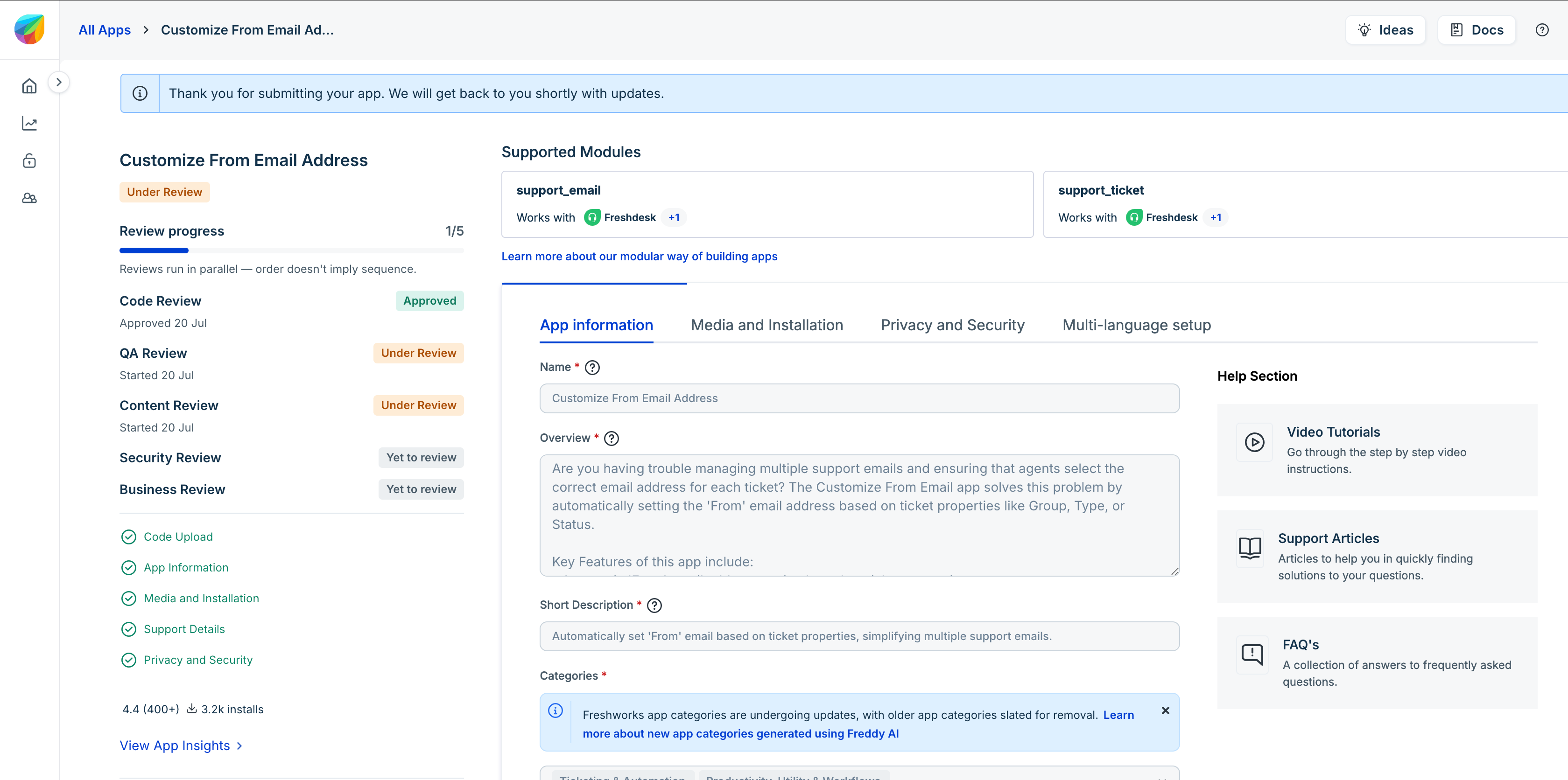 App submission page - App review status
Overall status reference
The overall status tag summarizes where your app stands in the review and publish workflow. Use the following table to interpret each status and determine your next step.
| Status | Meaning | Your next step |
|---|---|---|
| Draft / In Development | The app is not submitted for review. | Complete app details and submit the app. |
| Under Review | One or more review categories are in progress. | Wait for review to complete. Monitor per-category steps in the sidebar. |
| Changes requested | A reviewer rejected a category or action is required from you. | Address the feedback and resubmit the app. |
| Ready to publish | All reviews are complete and publish has not started. | Publish the app when you are ready. |
| Publish in progress | Publish is running. | Wait for publish to complete. |
| Rejected | The app was fully rejected. | Review the rejection details and decide on next steps. |
| Published | The app is live on the Freshworks Marketplace. | No action required. |
Per-category review steps
Each review category covers a distinct part of the submission. The following table describes what each category evaluates.
| Category | Description |
|---|---|
| Code | Code quality, security, and platform compliance. |
| QA | Functional testing. |
| Content | Listing content, links, category, screenshots, video, and descriptions. |
| Security | Security and privacy review. |
| Business | Business and marketplace policy review. |
Per-category status values
Each review category displays its own status in the sidebar. The following table describes what each per-category status means.
| Status | Meaning |
|---|---|
| Approved | The review passed, or the category was skipped. A skipped review means no action is needed. |
| Rejected | The reviewer requested changes for this category. |
| In progress | The review is underway. |
| Pending | The review has not started. |
Progress bar behavior
The progress bar advances only when a review category reaches a final state: Approved (including skipped reviews) or Rejected. Categories that are In progress or Pending do not count toward completed progress until the review finishes.