As you are navigating this section it is understood that you have following items available with you.
- Freshworks product account
- Node version 18.12.1 or higher installed locally
- Freshworks CLI with version 9.7.0 or higher installed locally
- App created locally by following previous steps
Validate and pack the app
To validate the app code for errors and pack the app for submission: Note:In the following procedure, <DIR> is the directory path to the folder containing the app files that are validated for errors or packed.
From the command line, navigate to the directory that contains the app related files and run the following command.
fdk validateOr
From the command line, run the following command.
fdk validate --app-dir <DIR>If there are errors in the code, corresponding violations are displayed. Ensure to fix all violations before packing the app. Reference: Lint validations.
To fix all lint errors for which auto-fix support is available, run the following command.
fdk validate --app-dir -fix <DIR>To pack the app for submission, run one of the following commands.
fdk packfdk pack --app-dir <DIR>A dist/<app_directory>.zip file is generated.
Upload & test your application
After packing your app, upload it to the Developer portal and test it before publishing. You can either upload a new custom app or add a new version to an existing custom app.
Upload a new custom app
Log in to your Freshworks product account.
Navigate to the corresponding apps gallery. In the Build your own apps section, click Build it yourself. The All Apps page of the Developer portal is displayed.
Or
Navigate to the Neo Admin Center page. In the My Accounts section, click on the developer account (/developer). The All Apps page of the Developer portal is displayed.
Notes:- If multiple accounts are associated with the organization, the Choose an Account window is displayed. Select the account to view the All Apps page for the selected account.
- In the All Apps page, you can switch between the accounts of the organization from the dropdown displayed.
- In the Neo Admin Center page, the developer account (/developer) will be displayed under the My Accounts section only if the developer has navigated to the Developer portal at least once.
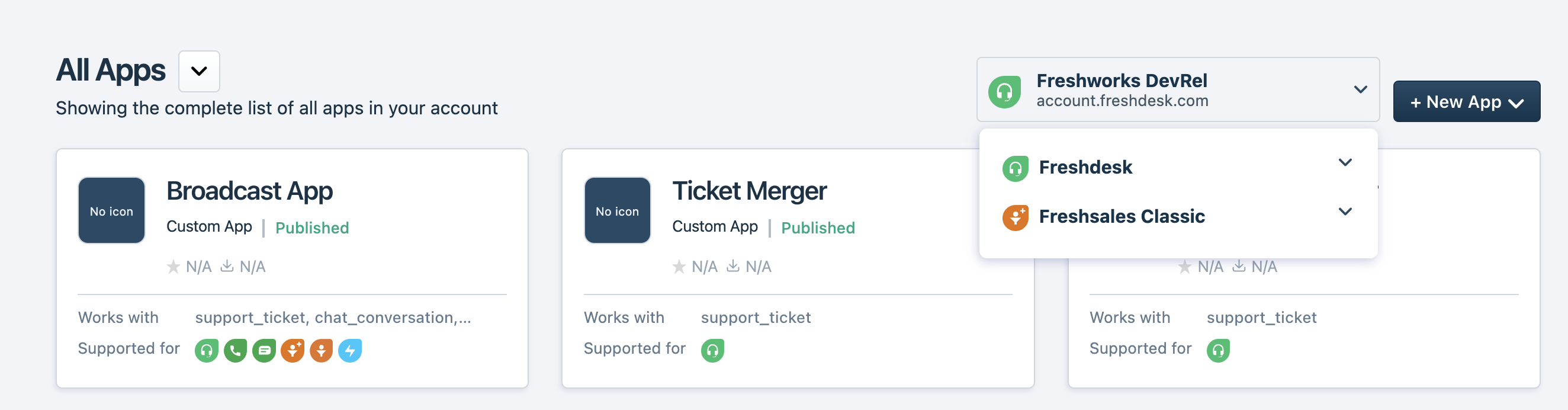 The All Apps page
Click New App and select Custom App. The Create a new app page is displayed.
From Select your App type, select Custom App.
In the Upload Zip file section, click Upload App file, select the packed app file, and click Open. The packed app file is uploaded. Note:To replace the uploaded app file, click Replace App file, select the packed app file, and click Open. The packed app file is replaced.
In the Name your App field, enter a meaningful name comprising two or three words.
Click Save and Continue. A page for entering the app details is displayed and the Works with section is auto-populated with the module(s) that your app works with, displayed as module cards. Each module card displays the name of the module and icons of the products that support the module in a SKU bundle.
Note:The Works with section displays the module card of each module(s) that your app is configured to work with, except for the common module. Even if the app is configured to work with the common module, the Works with section does not display a module card for the common module.
Important:The supported products for each app are auto-assigned based on the modules configured in manifest.json. To modify the auto-assigned products, reach out to marketplace@freshworks.com.
In the details panel on the left, the following values are auto-populated:
- The app’s name with the app status as Draft.
- The status of the app’s details such as Code Upload, App Information, Support Details, and App settings (displayed only when the uploaded app file has app settings functionality).
- App type: Specifies how an app is available to an app user. Possible App types: Freshworks app (publicly displayed in the Marketplace), Custom app (private only to the customer using the product), External app (listed in an external website).
- App Id: An app’s identifier that is displayed after the app is published.
- Last updated: The timestamp of when the app was last modified.
- Code File: The status and versions of the uploaded app, displayed in chronological order. When a new Freshworks app file is uploaded, the status is Draft Version (Draft).
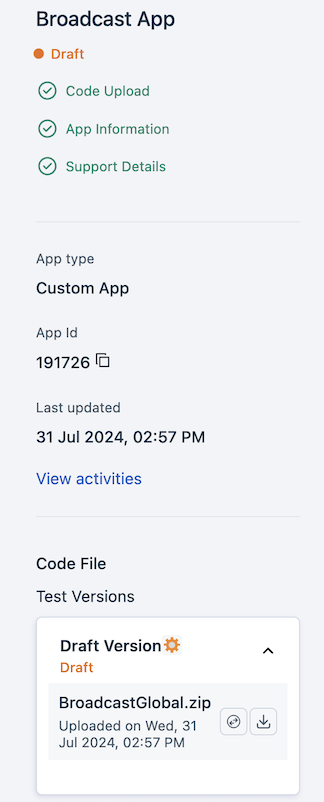 Draft version of the app
In the main section of the app details page, navigate to the App information tab and update the requisite app display details. Click Save and Continue. The Media and Installation tab is displayed.
In the Media and Installation tab, update the requisite media, installation, and support details.
If your app uses the app settings functionality, click Save and Continue. The App settings tab is displayed. In the App settings tab, update the requisite app settings details.
Click Save to save all the app, media, support, security, and app settings details.
Click Save and Test, to test the app before publishing. The Manage Apps page > In Development tab is displayed. Under this tab, a list of all the apps that are in development is displayed.
Note:The Manage Apps page is displayed in a new tab. In the current tab, in the Code File section, the app version changes from Draft to Test Version 1.0 (In Development).
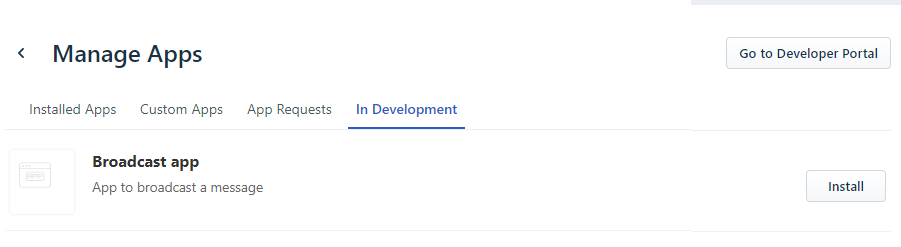 In development apps in Manage Apps > In development tab
To test the uploaded app, click Install next to the corresponding app name.
- If the app requires third-party authentication, a corresponding window requesting for login credentials is displayed. Enter appropriate credentials and log in. The Authorize app window is displayed. Click Authorize.
- If the app requires input in the form of installation parameters, the Settings page is displayed with the list of installation parameters. Enter appropriate input values and click Install.
The app is installed and the Install button is replaced with the Settings button.
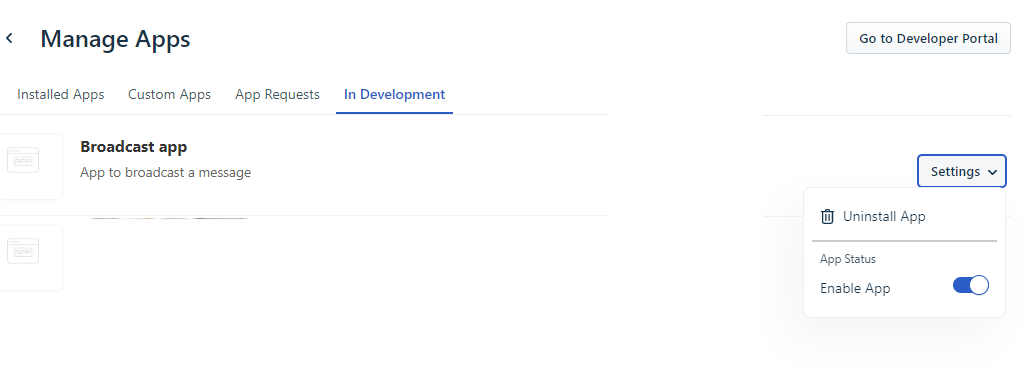 Installed apps in Manage Apps > In development tab
To test uninstallation, click Settings > Uninstall App. The app is uninstalled and the Settings button is replaced with the Install button.
To test app disabling, navigate to Settings > Enable app toggle key and set it to off state. The app is disabled.
After testing, to submit the app for publishing, navigate to the apps gallery.
In the Build your own apps section, click Build it yourself. The All Apps page of the Developer portal is displayed. All custom apps in development state are listed as cards.
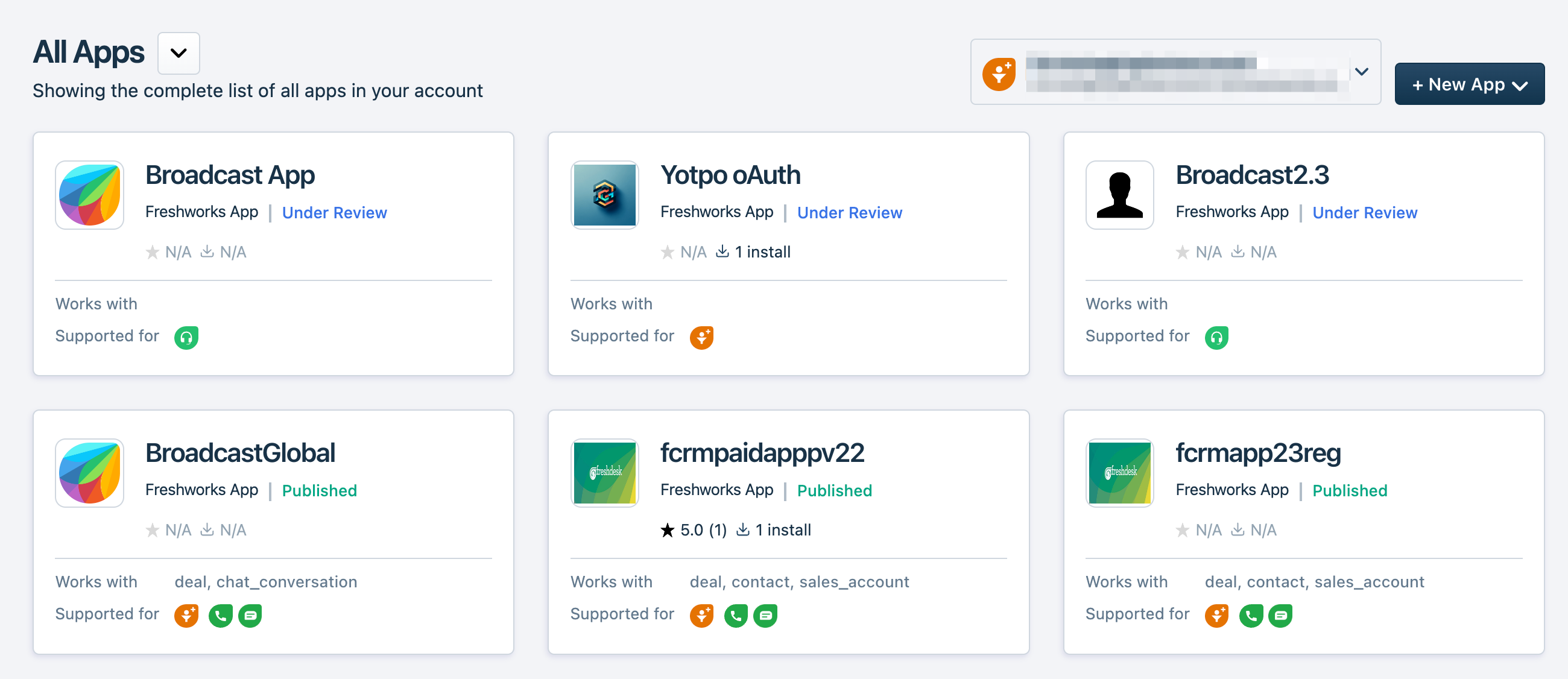 All apps page
Click on the appropriate Custom app card. The app details page is displayed. In the details panel on the left, in the Code File section, under Test Versions, the app version is specified as Test Version 1.0 (In Development).
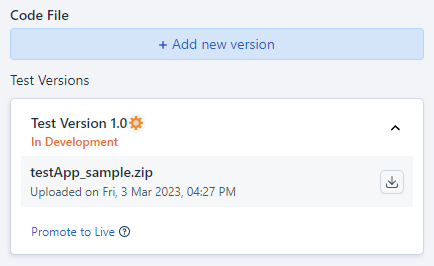 Test version of the app in the Code File section
To view all app testing and app submission activities that have been performed, in the details panel, click View activities. The Activities page is displayed.
To add a new version of the app that is in development, click Add new version. For more information, see Add a new version to existing custom app.
Add a new version to existing custom app
Important:When uploading and submitting a new version of an existing app,
Ensure that the app continues to include all previously supported modules. Uploading and submitting a packed app file that does not include the earlier supported modules displays an error message.
You can also include new modules that were not included in the previous version, from the same product and different products.
If you are not on the app details page, navigate to the apps gallery.
In the Build your own apps section, click Build it yourself. The All Apps page of the Developer portal is displayed.
Click on the Custom app card corresponding to the published app for which you want to upload a new version. A page with the app details is displayed. In the details panel on the left, under the Code File > Live versions section, all published app versions (up to a maximum of three latest versions) are listed.
In the Code File section, click Add new version. The Add new version window is displayed.
Click Click to upload, to select the packed app file and click Open. The packed app file is uploaded.
Click Save. The app details page is displayed. In the Code File > Test Versions section, the new version of the app is listed. The app status is Draft Version (Draft).
- To replace the uploaded app file, click Edit. The Add new version window is displayed. Click Replace to upload a new packed app file.
- To delete the uploaded app file, click Delete.
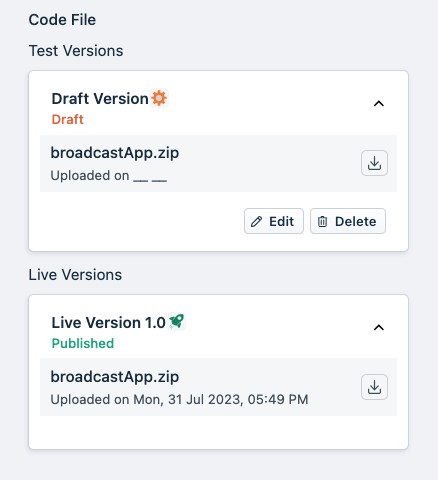 Edit and Delete buttons in the Code File section
In the main section of the app details page, navigate to the App information tab and update the requisite app details. Click Save and Continue. The Media and Installation tab is displayed.
In the Media and Installation tab, update the requisite media, installation, and support details.
If your app uses the app settings functionality, click Save and Continue. The App settings tab is displayed. In the App settings tab, update the requisite app settings details.
Click Save and Test, to test the app before publishing. The Manage Apps page > In Development tab is displayed. A list of all apps that are in development is displayed. The previously published version of the app is disabled.
Navigate to the Settings > Enable app toggle key and set it to on state, to enable the app. The Update button is displayed.
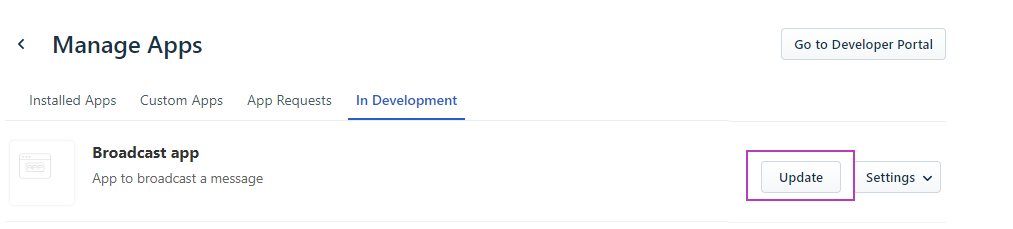 Update button in Manage Apps > In development tab
To test the enabled app, click Update. If required, reauthorize the app and provide appropriate values for the installation parameters. The previous version of the published app is updated to the latest version of the app to be tested.
To test uninstallation, click Settings > Uninstall App. The app is uninstalled and the Settings button is replaced with the Install button.
To test app disabling, navigate to Settings > Enable app toggle key and set it to off state. The app is disabled.
After testing, to submit the app for publishing, navigate to the apps gallery. The All Apps page is displayed. All custom apps are listed as cards.
Click on the appropriate Custom app card. The app details page is displayed. In the details panel on the left, in the Code File section, under Test Versions, the app version is specified as Test Version n+1.0 (In Development), where n is the previous app version that was tested.
Publish the custom app
To publish an app after testing:
In the app page > Code File section, navigate to the Test Versions section and click Promote to Live.
Or
In the main section of the app details page, click Save and Publish. Note: If the uploaded packed app file does not support the earlier supported modules, an error message is displayed.
In the app details panel on the left, the status of the app changes to Publishing In Progress. Custom apps are not subject to the review process and are available for installation within 30 minutes of app submission. After the app is successfully added as a Custom app, the status of the app changes to Published.
In the app details page > details panel on the left,
- The app status is Published.
- The Last updated field value is updated.
- The Last published field is displayed and the value of this field is auto-populated.
- The App Id field value is displayed.
- Under the Code File section, the app details are moved to the Live Versions section and the app status is Published.
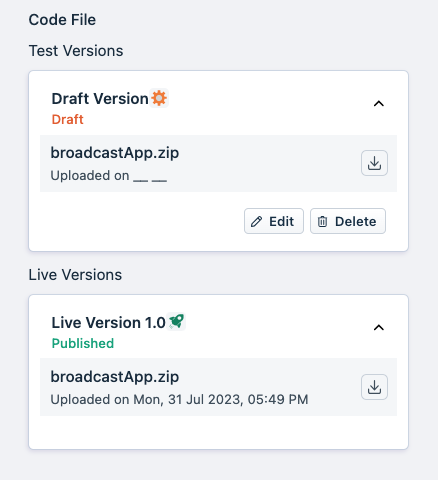
- The published custom apps are displayed under the Manage Apps > Custom Apps tab. A custom app can have only three published versions. If a new app version is promoted to live, only the three latest versions are displayed under the Manage Apps > Custom Apps tab. If no app users are using an outdated version, that version is deleted from the system. If app users are using a version older than the latest three versions, the app users can continue using the older version but it would not be displayed at Manage Apps > Custom Apps.
- After the app is published, in the Manage Apps page > In Development tab the app version that is published is disabled.